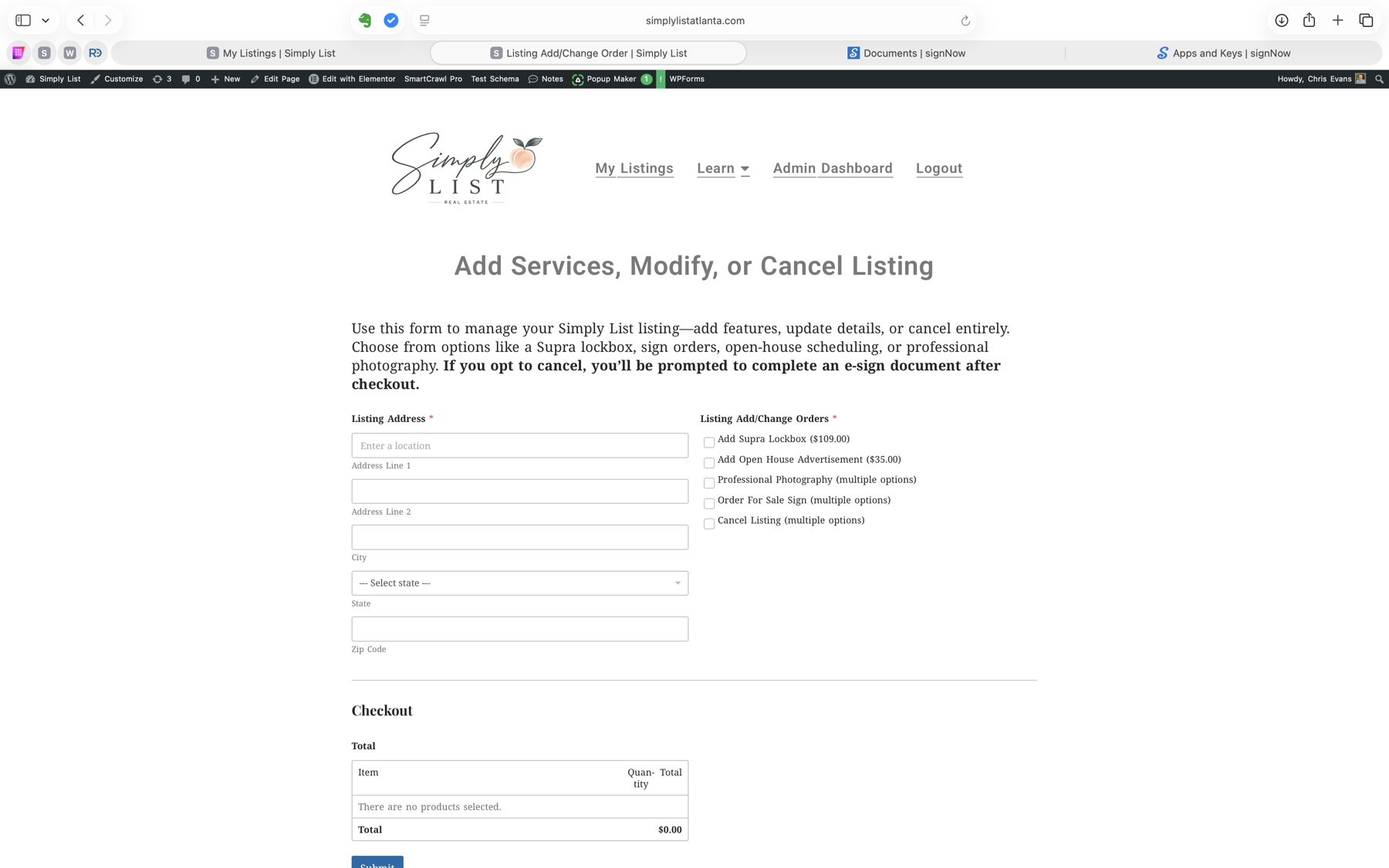
Previous Listing Support
Manage a listing created before the new dashboard
Older Simply List files may not appear as a property card in My Listings. You can still request changes, access forms, add services, or cancel the listing from your account.
Start here
Choose the path that fits your account
I already have an account
Sign in with the email connected to your Simply List order, then open My Listings. If you cannot remember the password, reset it instead of creating a second account.
Reset my login passwordI have never registered
Open the login page and choose the option to create an account. Use the same email address used for your original listing whenever possible. After registration, sign in and open My Listings.
Sign in or create an accountAlready logged in but cannot see a property card? That is expected for some older files. Look for the Previous Listing Support panel shown below.
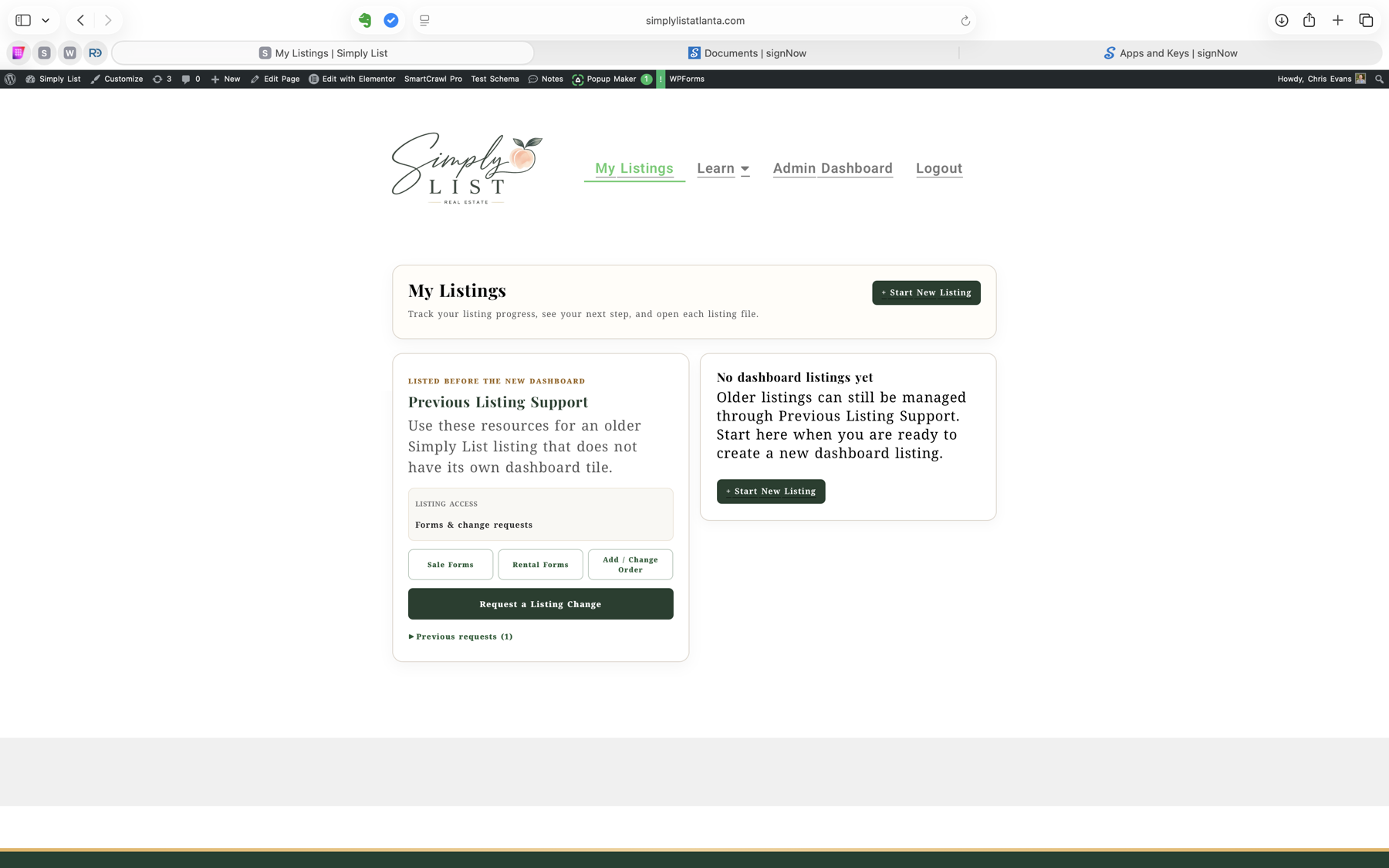
Request an update
Send ordinary listing changes through My Listings
Emailing a change does not update the listing. Use the website request so the change enters the Simply List operations queue and can be tracked.
- 1Open Request a Listing Change
Expand the green request bar in Previous Listing Support.
- 2Enter the complete property address
This lets the office match the request to your previous file.
- 3Describe exactly what should change
Include the new information and effective date. Submit one clear request for the work you need.
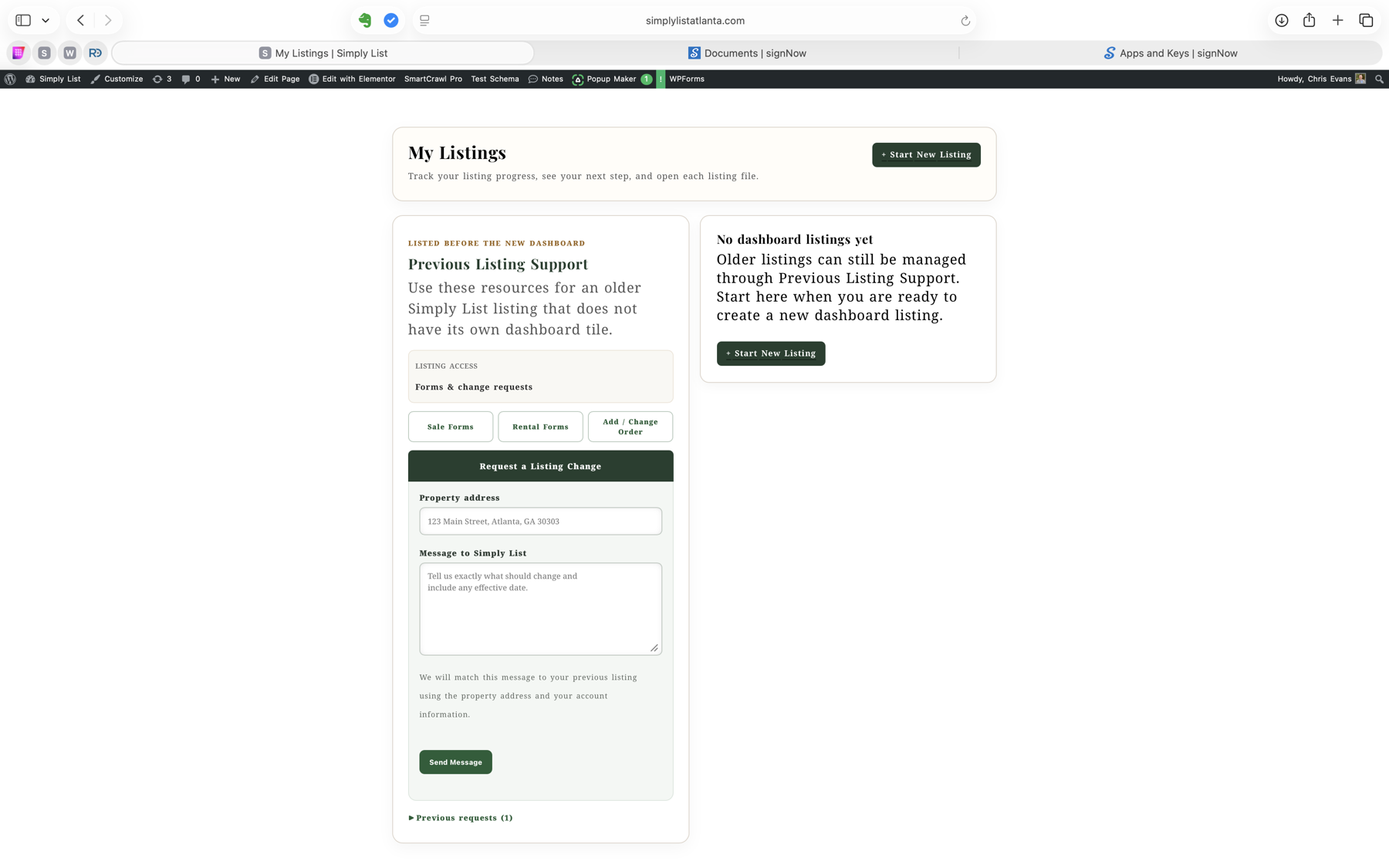
- 4Track the response
Open Previous requests to see the office status and response without relying on an email thread.
Forms and services
Use the right tool for the request
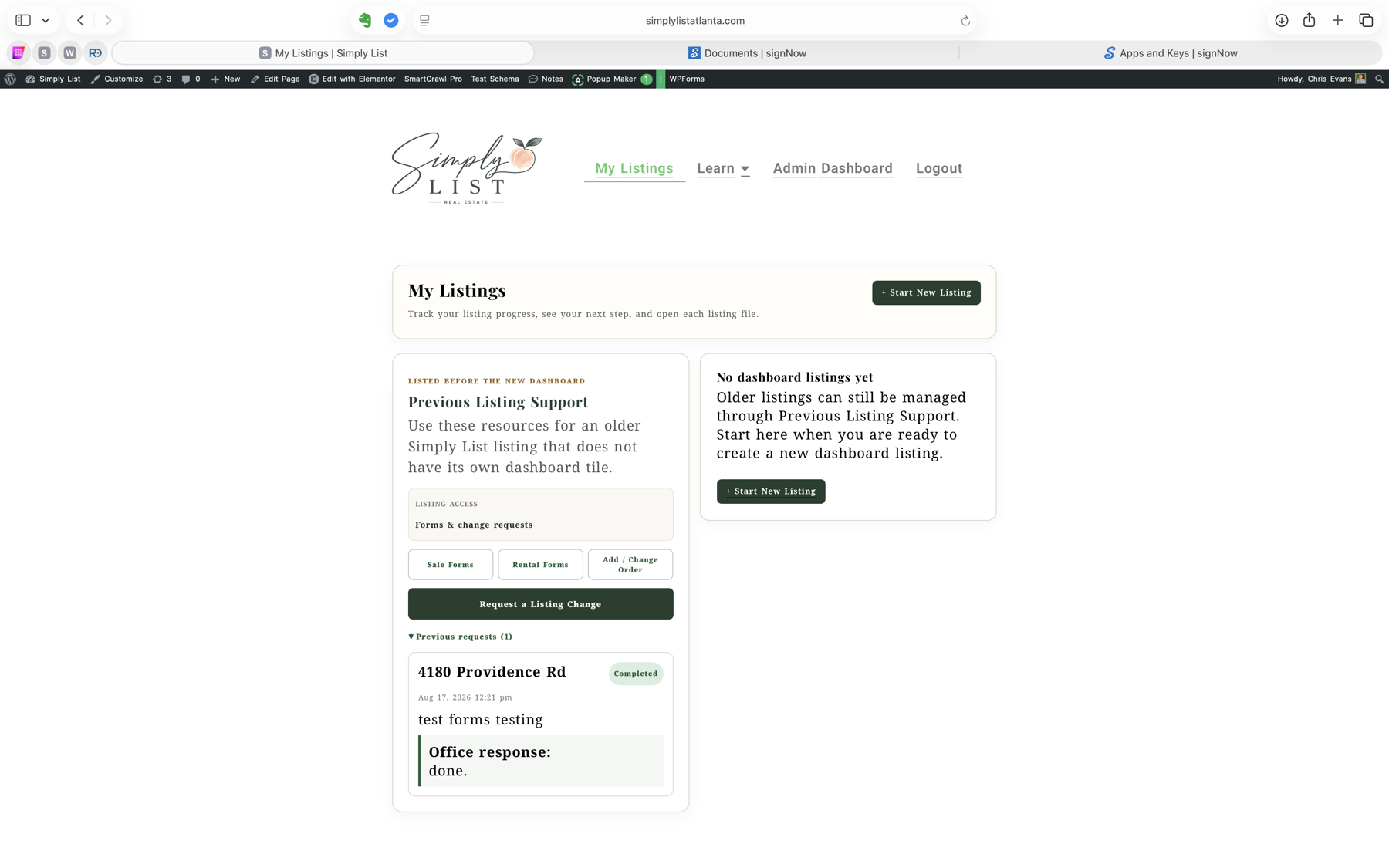
Sale Forms
Seller disclosures, contracts, and forms for an older for-sale listing.
Open Sale FormsRental Forms
Rental disclosures, lease resources, and forms for an older rental listing.
Open Rental FormsListing Services
Open the specific property file before ordering a service or beginning a cancellation. For an older listing without a dashboard tile, use Previous Listing Support.
Open My ListingsThe library password was sent by email with your original listing materials. For the current password, contact transactionbroker@simplylistatlanta.com.